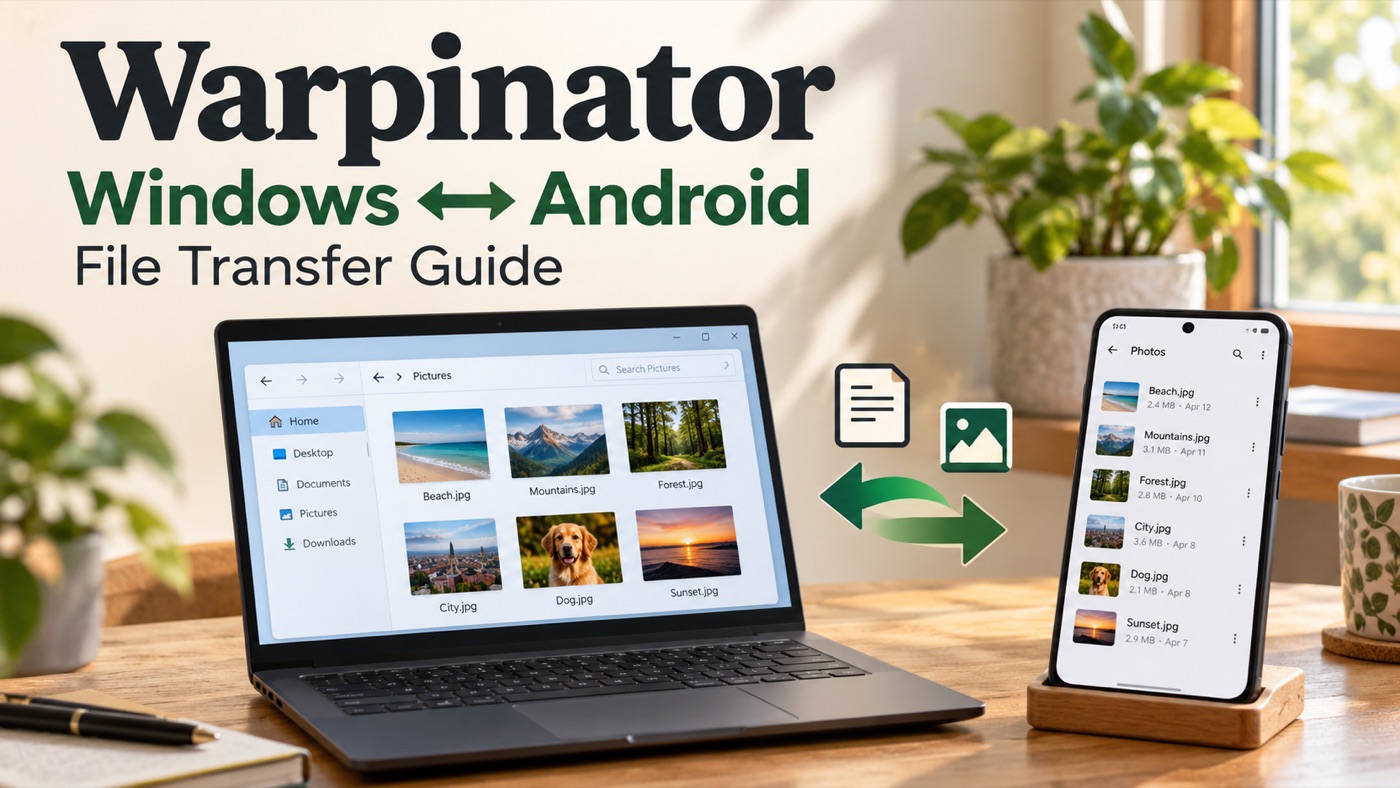
To move a file between a Windows PC and an Android phone with Warpinator, you need a compatible application on each device, a local network that lets the devices communicate, and a writable destination. A successful connection is only the first step: check the received copy before deleting the original.
This walkthrough covers a deliberate first transfer in both directions. Menu names depend on the client and version. It is a documentation-based guide, not a report of a version-specific device test.
1. Identify the two applications before installing
| Device | Project source | What to record |
|---|---|---|
| Windows PC | slowscript’s Windows implementation | Client name, version and installation source |
| Android phone | slowscript’s Android implementation | App version, Android version and receiving location |
These are independently maintained implementations, not Windows and Android editions published by Linux Mint. Follow each project’s release or store links. The Android repository lists its APK releases, F-Droid and Google Play availability; use the project to identify the correct publisher rather than choosing an unrelated APK site. For Windows download and package-manager steps, see our Windows installation guide.
2. Prepare a destination and a small test file
On the PC, create a folder named Warpinator-Test in a location you can write to. In the receiving application, select that folder if it offers a destination setting. On Android, inspect the app’s destination setting and grant access to the location it asks you to choose. Do not assume every Android version saves to the same folder.
Create a text file called transfer-check.txt containing a short, non-sensitive sentence and today’s date. Keep its original copy. A small file makes it easier to distinguish connection trouble from problems caused by a large transfer. Also choose a small, non-private photo already on your phone for the reverse test.
3. Connect the devices on a trusted network
- Connect both devices to the same trusted home network and open both applications. Mobile data alone does not put the phone on your PC’s local network.
- Compare their group-code settings privately and make them match where supported. Do not publish the code in a screenshot or support request.
- On a PC with Wi-Fi, Ethernet, a VPN and virtual adapters, check which local address the client is using. Select the adapter attached to the network shared with the phone.
- Wait for discovery, then confirm which entry represents your phone or PC. Compare the displayed device information on both screens.
A shared Wi-Fi name is not a guarantee of communication. Guest networks can separate devices. The Android maintainer’s connection notes recommend a hotspot as a comparison test and restarting the apps after network changes. A hotspot is a test, not a guarantee that every phone or network combination supports discovery.
4. Send Windows to Android
- In the Windows client, select the intended Android device and choose the small text file.
- On Android, inspect the incoming request and accept it if the sender and file are expected.
- Keep both applications open until they report completion. For this initial test, keep the phone awake so background behaviour is not an extra variable.
- Find the file using the location configured in the app. Open it in a suitable text viewer and compare the sentence and date.
- Check the file’s size in the receiving device’s file details. A matching name alone is not enough to confirm a usable copy.
5. Send Android to Windows
Use the Android app’s file-selection action to select your non-private photo and send it to the intended Windows device. Accept the request on the PC if prompted. Open the received photo from the destination folder and compare it with the original.
If the first direction succeeds and this direction fails, keep the successful setup unchanged while checking the Windows receiving folder, incoming-request setting, available storage and the actual error. This narrower comparison is more informative than reinstalling both apps immediately.
6. Match the failure to the stage
| What happens | Next step |
|---|---|
| The peer never appears | Use the discovery checklist: network isolation, group code and adapter selection. |
| The peer appears but stays on connecting | Use the connection-stage guide. Record both client versions and the messages on both screens. |
| The request arrives, but writing the file fails | Check the receiving folder, permissions and free space before changing network settings. |
| A small file works but a large one fails | Keep both apps open, note the failure point and follow the failed-transfer guide. |
| The transfer completes, but the file will not open | Compare the copy with the original and check whether the receiving device has an app for that file type. |
Do not expose your router’s ports to the internet to solve a local transfer problem. If a firewall rule is involved, use the documentation for the client you installed and scope it to the trusted network. Do not disable protection globally or treat a different client’s port setting as universal.
7. Keep a short result record
Record the date, device operating systems, both app versions, network type, sending direction, destination, test-file size and result. Note exactly one changed setting at a time. If sharing a screenshot or log, remove device addresses, personal filenames and group codes first.
A small successful transfer does not certify every large file or future client version. Keep the originals until you have checked the real files you intended to move. For an error in this walkthrough, contact Warpinator Guide Team with the page and step number. Software bugs belong with the maintainer of the installed client.